BPM Workflows
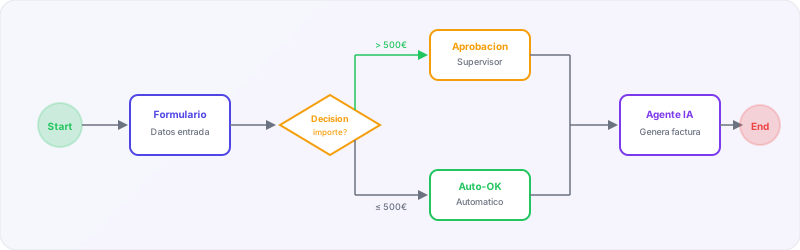
BiVelio’s visual workflow designer allows modeling, automating and executing complex business processes without writing code. Based on BPM notation, it offers 12 node types that cover everything from simple tasks to flows with approvals, parallel decisions and AI agents.
Visual designer
The workflow editor is a drag-and-drop interface where you can:
- Drag nodes from the side panel onto the canvas
- Connect nodes with arrows that define the execution flow
- Configure each node with its specific parameters
- Preview the complete flow before activating it
- Version workflows to maintain a history of changes
Node types
BiVelio offers 12 node types to build any process:
Flow control nodes
| Node | Function |
|---|---|
| Start | Workflow starting point. Defines the trigger: manual, system event or scheduled |
| End | Completion point. Can include closing actions such as notifications or updates |
| Decision | Conditional branching based on case data, form data or process variables |
| Parallel Gateway | Splits the flow into parallel branches that execute simultaneously |
| Merge Gateway | Waits for all parallel branches to finish before continuing |
| Timer | Pauses execution for a defined time or until a specific date |
| Subprocess | Executes another workflow as part of the current flow, enabling reuse |
Action nodes
| Node | Function |
|---|---|
| User Task | Assigns a task to an operator that must be completed manually |
| Approval | Requests approval from one or more users. Supports simple, sequential or majority approval |
| Form | Presents a form to the user to collect structured data |
| Notification | Sends notifications by email, in-app or through ChannelHub channels |
| Agent | Invokes an AI agent to process data, make decisions or generate content |
Example workflow
A typical customer service workflow could be:
Start (new case created)
  → Agent (AI triage: classifies priority and topic)
  → Decision (critical priority?)
    → Yes: Notification (alert supervisor)
       → User Task (immediate attention)
    → No: User Task (normal attention)
  → Approval (customer satisfied?)
    → Yes: End (close case)
    → No: User Task (review and new proposal)
       → Approval (second attempt)
       → End
Available triggers
A workflow can be started by:
- System event — case creation, incoming message, status change
- Schedule — daily, weekly or monthly cron
- Manual — an operator starts the workflow from the interface
- API — external invocation via REST endpoint
- Another workflow — via Subprocess node
Workflows execute asynchronously. When a node requires human intervention (User Task, Approval, Form), the workflow pauses and notifies the assigned user. Execution resumes automatically upon completing the task.
Variables and context
Each workflow instance has access to a data context that is enriched at each step:
- Start variables — trigger data (case, contact, message)
- Form variables — data collected in Form nodes
- Decision variables — results of conditional evaluations
- Agent variables — outputs from invoked AI agents
Variables propagate between nodes and can be used in notification templates, decision conditions and task configuration.
Versioning and publishing
- Workflows are edited in draft mode
- When published, a new active version is created
- Running instances continue with the version they started with
- You can revert to a previous version at any time